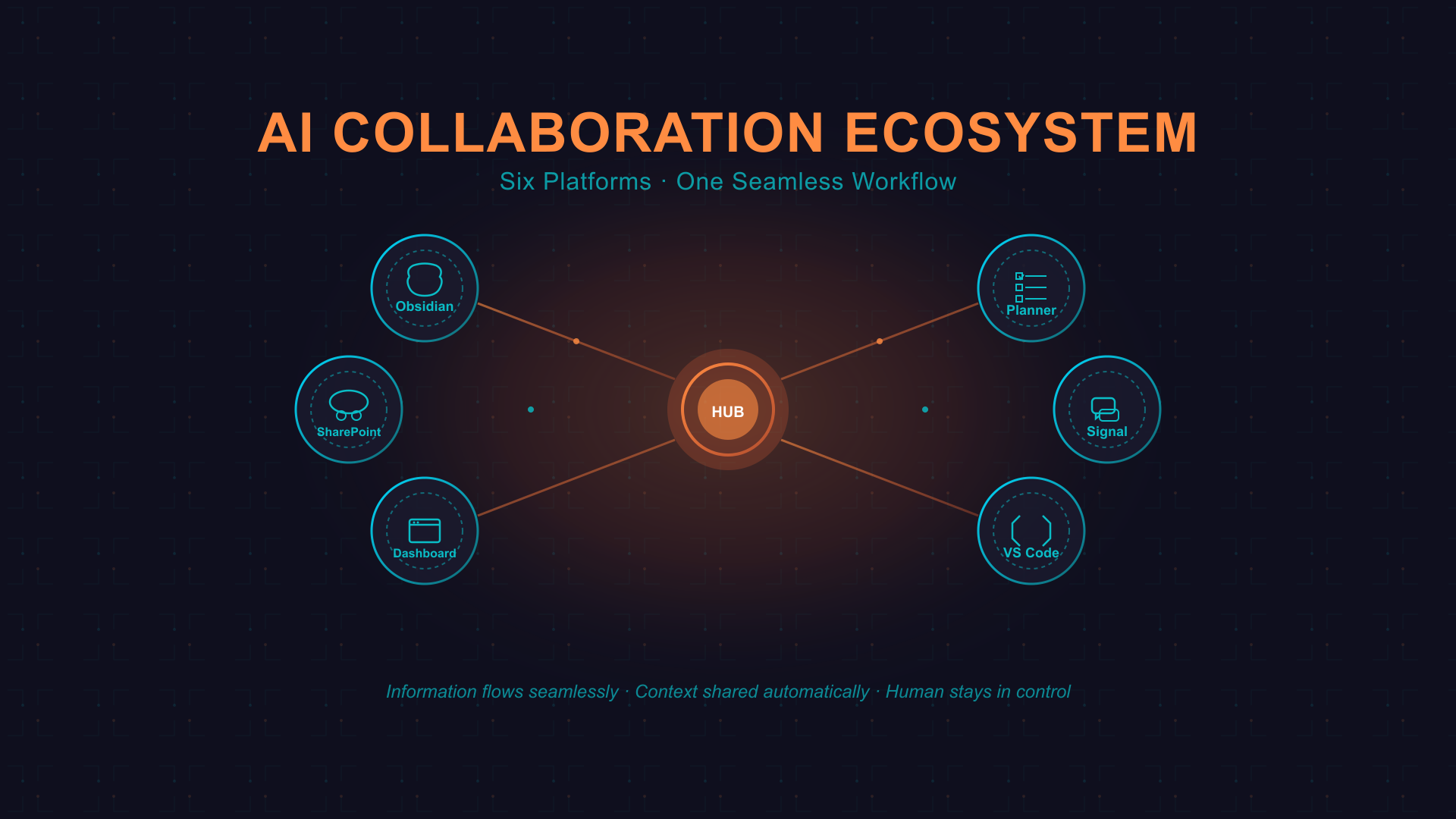
People often ask me: “How do you actually work with your AI?” The answer isn’t simple - it’s not just one tool or platform. It’s an ecosystem of interconnected systems, each serving a specific purpose, all working together to create something greater than the sum of its parts.
Let me show you how my AI assistant and I collaborate across different platforms, why each one matters, and how information flows between them to keep everything synchronized.
The Core Collaboration Platforms
📝 Obsidian: The Shared Brain
What it is: A markdown-based note-taking system that syncs via iCloud
Why we use it: It’s where my AI assistant and I share long-form thinking
my AI assistant writes to my Obsidian vault constantly:
- Morning briefs go to
Briefs/YYYY-MM-DD-morning-brief.md - Research notes land in
Research/organized by topic - Project documentation lives in
Projects/with status updates - Daily memory gets captured in
Daily/YYYY-MM-DD.md
The magic is iCloud sync - my AI assistant writes on my Mac mini, but I can read on my iPhone, iPad, or any device. The notes are just markdown files, so they’re future-proof and searchable.
Real example: This morning, my AI assistant researched Big Tech’s $700B AI spending plans and wrote a full brief to Briefs/2026-02-10-morning-brief.md. I read it on my iPhone while drinking coffee, without ever touching my computer.
✅ Microsoft Planner: The Active Task System
What it is: Microsoft 365’s visual task management tool
Why we use it: my AI assistant can actively research and prepare my tasks
This isn’t passive task tracking - it’s active AI collaboration. When I create a task in Planner, Barack:
- Researches the topic (market data, technical specs, best practices)
- Creates checklists breaking complex work into steps
- Gathers resources (links, documents, contact info)
- Updates progress as work gets done
I have multiple boards for different contexts:
- Consulting Projects - Client work for Meeker Technologies
- Teaching Projects - Course prep for University of Iowa
- Agilent Tasks - My day job deliverables
- Learning & Development - Skills I’m building
- Family - Trip planning, home projects
my AI assistant monitors all of them, working in the background to prepare materials before I even start.
Real example: Last week I added “Research Acumatica API capabilities” to my Northstar Solutions consulting board. By the next morning, my AI assistant had:
- Documented the Report API (new in 2023 R2)
- Created a discovery workflow with specific API endpoints
- Built a 19KB implementation guide
- Added technical Q&A for the client meeting
Read more about AI Planner collaboration
☁️ SharePoint/Teams/OneDrive: Client Collaboration
What it is: Microsoft 365’s enterprise collaboration stack
Why we use it: When clients need access to materials
my AI assistant has full M365 integration through PAI, which means he can:
- Upload documents to client-specific SharePoint sites
- Share folders via OneDrive with proper permissions
- Post updates in Teams channels
- Access meeting transcripts from Teams calls
The key decision: Who needs access?
- Just me? → Obsidian (fastest, most flexible)
- Me + clients? → SharePoint/OneDrive (proper permissions, professional)
- Me + family? → Shared iCloud folders (simple, no Microsoft account needed)
Real example: For my Northstar Solutions consulting engagement, my AI assistant automatically:
- Created a SharePoint folder structure
- Uploaded discovery documents and legal templates
- Set proper permissions for the client
- Sent sharing links via email
💬 Signal: Real-Time Communication
What it is: Encrypted messaging platform
Why we use it: Quick questions and mobile access
Signal is my always-on connection to my AI assistant. I can:
- Ask quick questions while driving (via voice)
- Get task updates anywhere
- Receive morning briefings with natural voice audio
- Troubleshoot issues in real-time
my AI assistant sends me:
- Morning briefs (text summary + voice audio)
- Priority alerts (urgent emails, calendar conflicts)
- Task completions (“Research finished for project X”)
- System status (“Disk space low, cleaning up”)
Real example: This morning at 7:15 AM, I received:
- Text message with weather and top priorities
- natural-voiced audio summary (2-3 minutes)
- All while I was getting ready in the bathroom
📞 Voice Calls: When Text Isn’t Enough
What it is: Google Voice number + Azure Communication Services (ACS)
Why we use it: Real-time voice conversations with my AI assistant
Sometimes you need to talk, not type. I set up a dedicated phone number where I can call my AI assistant directly:
The setup:
- Google Voice - Free phone number that routes to Azure
- Azure Communication Services - Handles call routing and processing
- Local STT/TTS - Speech-to-text and text-to-speech on my infrastructure
- Anti-spoofing measures - Caller ID verification to prevent unauthorized access
When I use it:
- Driving - Hands-free conversation while commuting
- Complex brainstorming - Voice is faster than typing for exploratory thinking
- Urgent issues - When text feels too slow
- Testing systems - Verifying voice workflows work correctly
Security: The system validates caller ID against my known numbers before processing. Random callers can’t access my AI assistant just because they found the number.
Technical note: This uses the same voice infrastructure described in my voice integration post - local processing, no cloud dependencies for the actual conversation, just the initial call routing.
🌐 Web Dashboard: The Command Center (Anywhere via Tailscale)
What it is: OpenClaw’s web interface accessible from anywhere
Why we use it: Full conversation history and system management without exposing ports
The web dashboard gives me:
- Complete chat history across all sessions
- Sub-agent monitoring (I can see what PAI is working on)
- File uploads (drag-and-drop documents for analysis)
- System configuration (manage skills, cron jobs, settings)
- Secure remote access - Via Tailscale VPN (zero trust, no port forwarding)
I use it when I need to:
- Deep dive into a complex problem
- Upload documents for my AI assistant to analyze
- Review history of what we discussed weeks ago
- Configure automations (cron jobs, heartbeat checks)
- Access from anywhere - Coffee shop, airport, hotel - securely
Real example: When building the Universal Conversation Search system, I used the dashboard to:
- Upload sample JSONL files
- Monitor the conversion pipeline
- Review search results across 4,936+ messages
- Debug file path issues
Read about Universal Conversation Search
Security note: The dashboard runs on my local network (openclaw.local), but I can access it from anywhere using Tailscale - a zero-trust VPN that creates secure peer-to-peer connections between my devices. No ports forwarded to the internet, no public exposure, just my authenticated devices talking directly to my Mac mini. The same Tailscale connection lets me access my AI assistant’s infrastructure whether I’m at home, traveling, or working from a coffee shop.
💻 VS Code + Claude Chat: When Things Break
What it is: Visual Studio Code with Claude Code extension
Why we use it: Debugging and pair programming
Sometimes my AI assistant breaks himself. Or I break him. Either way, we fix it together in VS Code.
The workflow:
- Something fails (a skill crashes, a tool returns errors)
- I open VS Code to the relevant files
- Claude Chat helps debug (analyzes code, suggests fixes)
- We iterate until it works
- my AI assistant tests the fix in his environment
This creates a meta-collaboration loop: my AI assistant helps me build the tools that make my AI assistant better.
Real example: Last month, my AI assistant’s morning brief audio stopped working. We debugged together:
- I opened VS Code to the Chatterbox TTS integration
- Claude Chat analyzed the error logs
- We discovered the Windows service wasn’t starting correctly
- Fixed the systemd service file
- my AI assistant tested and confirmed it worked
- Now he sends me natural-voiced briefings every morning
The Information Flow
Here’s how information moves through the ecosystem:
Morning Routine (7:00 AM)
Cron job fires
  ↓
my AI assistant checks calendar, email, tasks
  ↓
Writes Obsidian brief (iCloud syncs to all devices)
  ↓
Sends Signal message (text summary)
  ↓
Generates natural voice audio (Chatterbox TTS)
  ↓
Sends audio via Signal
  ↓
I wake up informed
Task Workflow
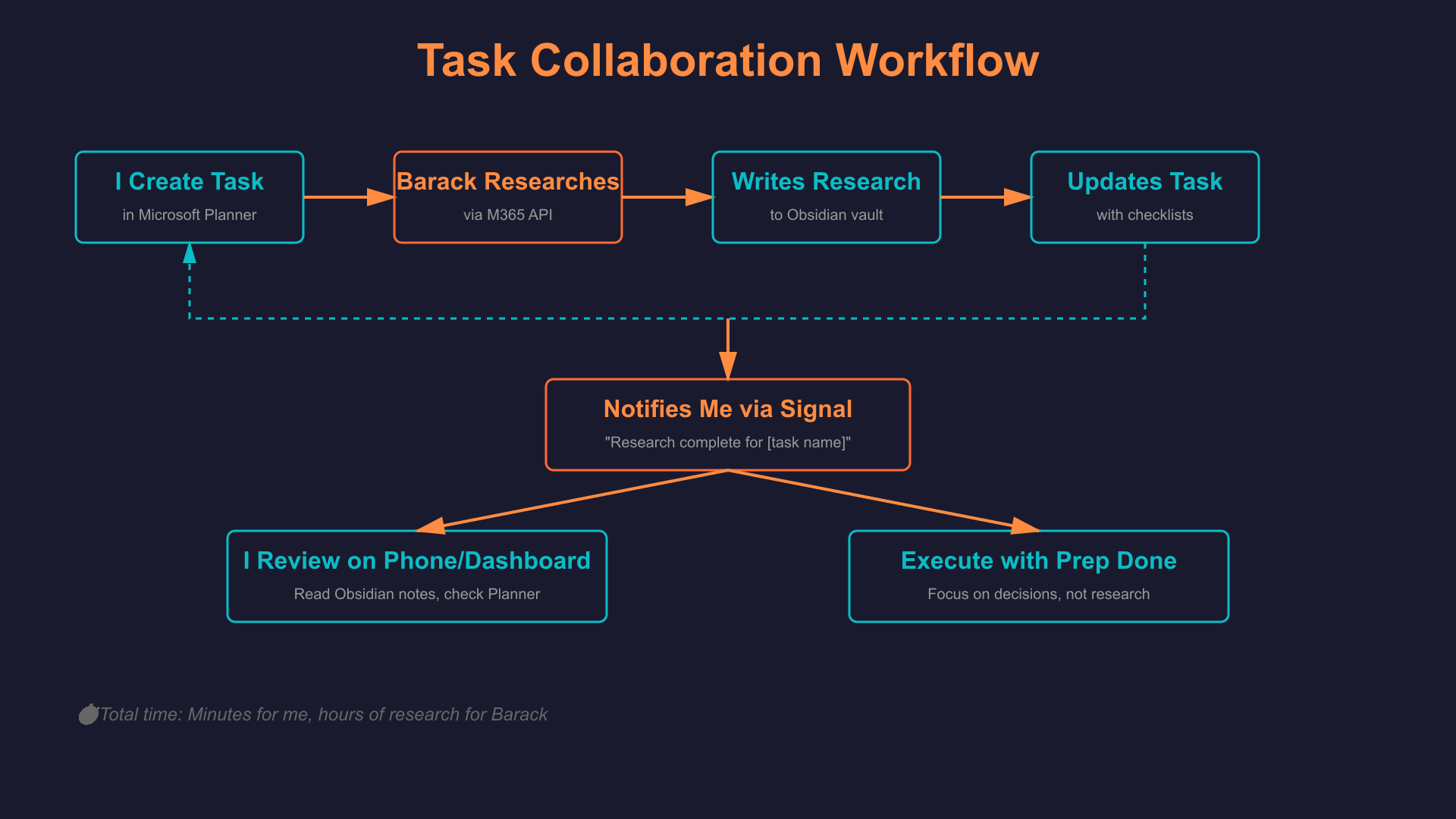
The workflow is seamless:
- I create task in Microsoft Planner
- my AI assistant sees it via M365 API integration
- Researches topic (web, documents, previous notes)
- Writes findings to Obsidian for my review
- Creates checklists in Planner with action items
- Uploads client docs to SharePoint (if needed)
- Notifies me via Signal when ready
- I review on phone/dashboard with all prep done
Client Deliverable
I ask my AI assistant to prepare proposal
  ↓
PAI generates document (legal templates, branding)
  ↓
Saves to Obsidian for my review
  ↓
I approve via Signal ("looks good, send it")
  ↓
my AI assistant uploads to SharePoint
  ↓
Shares link with client via email
  ↓
Updates Planner task status
Troubleshooting Loop
my AI assistant encounters error
  ↓
Logs to daily memory file
  ↓
Alerts me via Signal
  ↓
I open VS Code + Claude Chat
  ↓
We debug together
  ↓
Fix committed to repo
  ↓
my AI assistant tests and confirms
  ↓
Updates documentation in Obsidian
Why This Matters: Platform Purpose vs. Tool Sprawl
You might think “That’s too many tools!” But each one serves a distinct purpose:
| Platform | Purpose | Why Not Others? |
|---|---|---|
| Obsidian | Personal knowledge base, fast writes | SharePoint is slow, Signal has no history |
| Planner | Active task collaboration | Obsidian isn’t collaborative, Signal is ephemeral |
| SharePoint | Client document sharing | Obsidian isn’t shareable, Planner can’t host files |
| Signal | Real-time mobile access | Dashboard requires browser, Obsidian not instant |
| Dashboard | System management, full history | Signal is mobile-only, Obsidian can’t manage OpenClaw |
| VS Code | Code debugging, pair programming | Others aren’t IDEs |
The key insight: Don’t force one tool to do everything. Use the right platform for each job, then connect them intelligently.
The Decision Tree: Where Should This Go?
my AI assistant and I follow simple rules:
For Notes/Research/Memory
- Just me, any device → Obsidian (iCloud synced)
- Me + clients → SharePoint with proper folder structure
- Quick capture → Signal message to myself, my AI assistant files it later
For Tasks
- Work tracking → Planner (active AI collaboration)
- Quick reminders → Signal to my AI assistant (“remind me in 2 hours”)
- Complex projects → Planner board with Obsidian project folder
For Communication
- Real-time → Signal (instant, mobile)
- Deep work → Web dashboard (full context)
- Client updates → Email via M365 (professional, tracked)
For Documents
- Private → Obsidian markdown files
- Shared → SharePoint/OneDrive with permissions
- Legal/formal → DocuSeal e-signature system
The Secret Sauce: Automated Context Sharing
The magic isn’t the individual tools - it’s how my AI assistant automatically shares context between them:
Example 1: Research → Tasks → Memory
- my AI assistant researches in browser/APIs
- Writes findings to Obsidian project folder
- Updates Planner checklist with key insights
- References Obsidian note in Planner comments
- I see progress in Planner, read details in Obsidian
Example 2: Email → Calendar → Briefing
- Client emails about meeting change
- my AI assistant updates M365 calendar
- Morning brief includes “Client moved meeting to 2pm”
- Obsidian brief links to email and calendar event
Example 3: Code Fix → Documentation → System
- We fix bug in VS Code
- my AI assistant updates skill README in Obsidian
- Commits fix to git repo
- Documents lesson in daily memory file
- Updates system health checklist
The Human Element: When I Override
my AI assistant has access to all these systems, but I’m still in control:
I decide:
- What gets shared with clients (approve before uploading)
- When to send emails (my AI assistant drafts, I approve)
- Which tasks to prioritize (my AI assistant suggests, I choose)
- How to respond to people (my AI assistant never speaks for me in group chats)
my AI assistant decides:
- Where to file information (Obsidian folder structure)
- How to organize research (chunking, formatting)
- When to alert me (urgent vs. can wait)
- What system health checks to run
We decide together:
- New skill development (I propose, we build, PAI implements)
- Workflow improvements (my AI assistant suggests, I approve)
- Automation rules (collaborative design)
Lessons Learned
After months of building this ecosystem, here’s what I’ve learned:
✅ What Works
- Obsidian as source of truth - Everything important gets written down, synced everywhere
- Planner for active collaboration - Tasks aren’t passive anymore, they’re collaborative projects
- Signal for real-time - Instant access anywhere beats waiting to get to a computer
- Separate work contexts - Different Planner boards prevent mental context switching
- Voice for morning briefs - natural audio is way better than reading a wall of text
❌ What Doesn’t Work
- Trying to use Signal for everything - It’s great for quick stuff, terrible for long-form
- SharePoint for personal notes - Too slow, too clunky, not needed unless sharing
- Single massive Planner board - Context switching kills productivity
- Manual sync - If my AI assistant has to ask me to update something, the system failed
- Overengineering simple tasks - “Buy milk” doesn’t need a Planner board
🎯 The Golden Rule
Put information where it will be accessed, not where it’s convenient to write.
- Morning brief → Signal (I check my phone first thing)
- Research → Obsidian (I need it on all devices)
- Client docs → SharePoint (they need permissioned access)
- Task prep → Planner (I manage work there)
- System logs → Daily memory files (for troubleshooting later)
What’s Next
The ecosystem keeps evolving:
In Progress:
- Universal search across all platforms (find anything, anywhere)
- Voice task creation (“my AI assistant, add this to my Agilent board”)
- Proactive task suggestions (my AI assistant identifies work before I ask)
- Client dashboard (let clients see project status without SharePoint)
Exploring:
- Family calendar integration (Tiffany needs visibility too)
- Teaching automation (grading, Canvas integration)
- Multi-agent collaboration (different AI personalities for different contexts)
The Takeaway
Building an AI collaboration ecosystem isn’t about using every tool available. It’s about:
- Understanding each platform’s strengths
- Connecting them intelligently
- Automating the context sharing
- Staying in control while letting AI handle the grunt work
my AI assistant and I don’t just use tools - we’ve built a collaborative workflow where information flows naturally between platforms, each serving its purpose, all working together to make both of us more effective.
And when something breaks? We fix it together in VS Code, document the lesson in Obsidian, and move on.
That’s the real magic.
Want to dive deeper into specific parts of the ecosystem? Check out:
- AI Planner Collaboration - How active task collaboration works
- Universal Conversation Search - Finding information across all platforms
- M365 Integration - SharePoint, Teams, and Planner access
- Building PAI - The foundation of the ecosystem