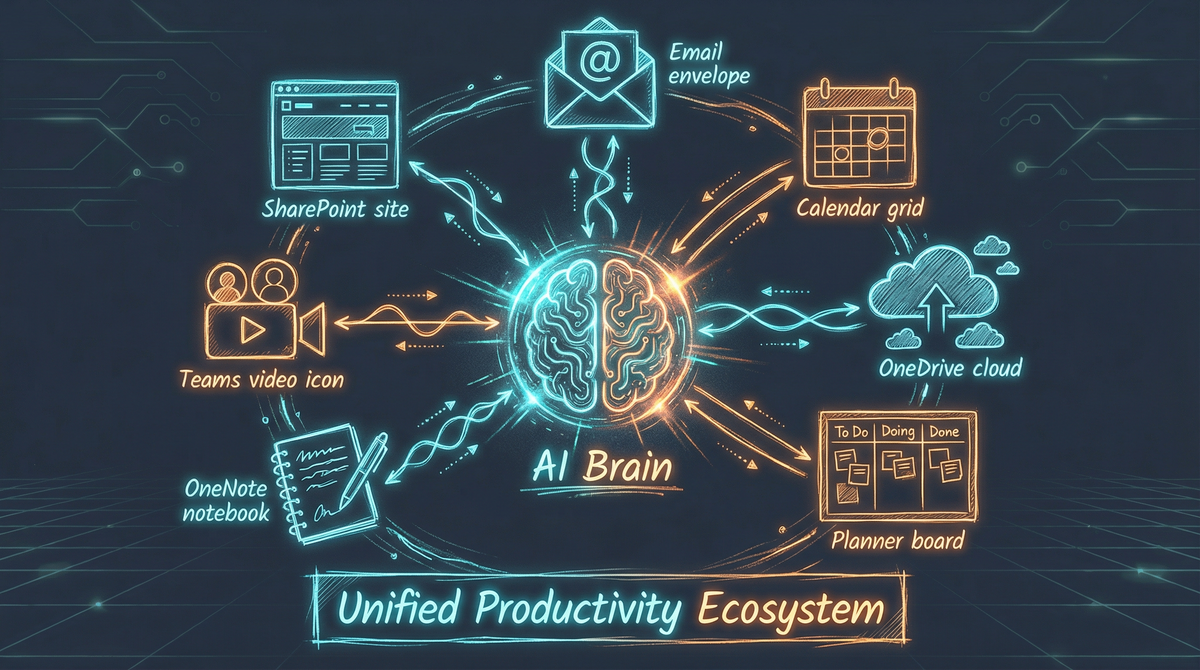
PAI now has full visibility across the Microsoft 365 stack. Seven services, unified under one AI that can orchestrate workflows spanning your entire digital workspace.
The M365 Surface Area
Here’s what PAI can now see and act on:
| Service | What PAI Can Do |
|---|---|
| Calendar | Check availability, find meeting times, review upcoming commitments, identify scheduling conflicts |
| OneDrive | Browse files, search documents, retrieve content for context, upload outputs |
| Planner | View team tasks across plans, check project status, understand workload distribution |
| To Do | Manage personal tasks, track action items, maintain task lists |
| Contacts | Look up people, find email addresses, understand organizational relationships |
| SharePoint | Access team sites, browse document libraries, search across organizational content |
| OneNote | Read notebooks, retrieve meeting notes, access knowledge bases |
Cross-Service Workflows
The real power isn’t in accessing individual services—it’s in orchestrating across them.
Example: Meeting Preparation
"Prepare me for my 2pm meeting with Acme Corp"

PAI orchestrates:
1. Calendar → Pull meeting details, attendees, agenda
2. Contacts → Look up attendee roles and relationship history
3. OneDrive → Find recent Acme-related documents
4. OneNote → Retrieve notes from previous Acme meetings
5. Planner → Check status of Acme-related project tasks
6. Email → Surface recent Acme correspondence

Result: Comprehensive briefing in 30 seconds
Example: End-of-Day Summary
"What happened today that I need to know about?"

PAI checks:
1. Calendar → Meetings attended, what was discussed
2. Email → Important messages received
3. Planner → Tasks completed or updated by team
4. To Do → Personal items checked off
5. SharePoint → Documents modified in team sites

Result: Daily digest across all productivity surfaces
Example: Project Status Check
"Where do we stand on the Q1 launch?"

PAI aggregates:
1. Planner → Task completion rates, blockers, assignments
2. SharePoint → Latest documents and their edit dates
3. Calendar → Upcoming milestones and review meetings
4. OneNote → Meeting notes mentioning launch items

Result: Cross-functional project visibility without opening 4 apps
Least Privilege Architecture
Not every workflow needs everything. PAI requests only what’s needed through scope groups:
- Core - Basic profile (always required)
- Email - Mail and calendar access
- Files - OneDrive documents
- Tasks - Planner and To Do
- Notes - OneNote notebooks
- Teams - Meetings and channels
- Contacts - People and directory
- SharePoint - Sites and libraries
A workflow that only needs calendar and contacts won’t touch your files. Each service verifies it has permission before executing.
The Integration Layer
Under the hood, PAI uses Microsoft Graph API with a shared authentication layer. All seven services inherit from a common base that handles:
- Token management with automatic refresh
- Scope verification before API calls
- Consistent error handling with actionable guidance
- Pagination for large result sets
When a service lacks required permissions, it tells you exactly what to do:
Contacts requires additional permissions.
Missing scope groups: contacts

To add these permissions, run:
  python m365_setup.py --add-groups contacts
What’s Next
With this foundation in place, the next layer is automation workflows:
- Morning briefing that pulls from calendar, email, and tasks
- Meeting follow-up that creates tasks and sends summaries
- Weekly reports that aggregate across all productivity surfaces
- Smart filing that routes documents based on content
The M365 surface area is now available. The question is: what workflows will you build?
This integration represents 24 Microsoft Graph API scopes across 7 services, unified under PAI’s orchestration layer.