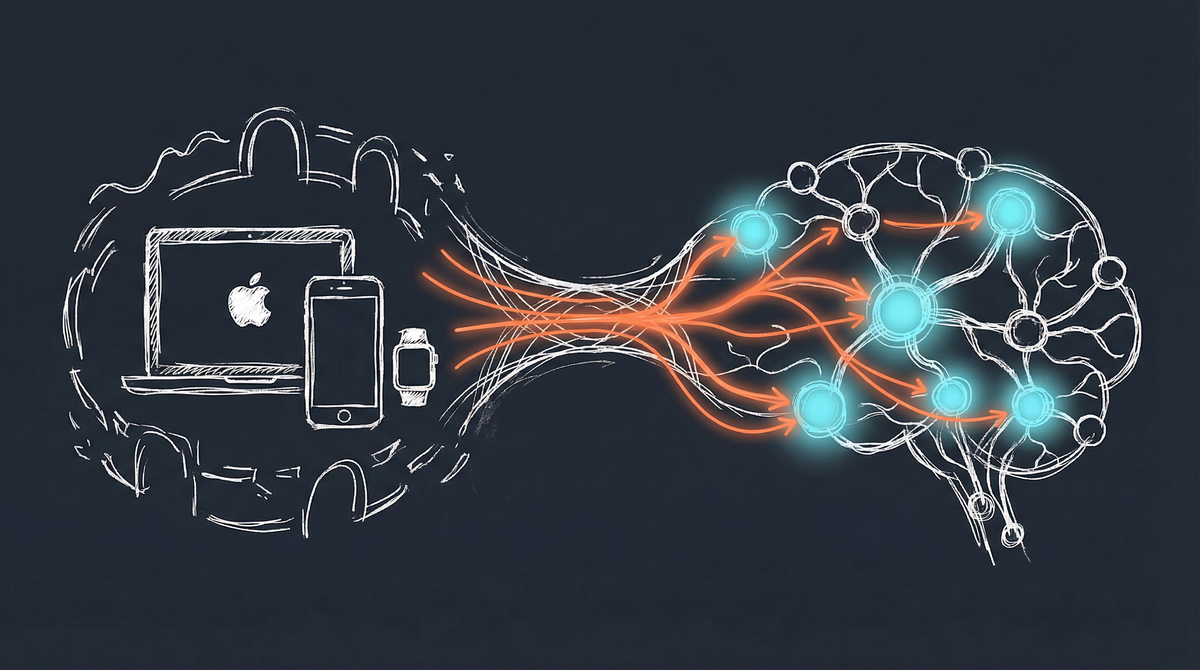
Apple’s ecosystem is famously closed. iMessage, Calendar, Notes, Reminders—they all work beautifully together, but getting external systems to interact with them? That’s traditionally been nearly impossible.
Until now. By adding a Mac Mini to my PAI infrastructure, I’ve unlocked bidirectional access to the entire Apple ecosystem. My AI can read my messages, check my calendar, access my notes, and even respond through Siri. Here’s how it works and what it unlocks.
The Problem: Apple’s Walled Garden
Apple prioritizes privacy and security, which means:
- iMessage has no API - You can’t programmatically send or receive messages
- Calendar/Notes sync only with iCloud - No third-party integration without Apple devices
- Siri doesn’t talk to external systems - Voice commands stay inside Apple’s ecosystem
For someone building Personal AI Infrastructure, this creates a gap. My AI could handle email, search the web, and manage files—but my most personal communication channel (iMessage) and my actual schedule were invisible to it.
The Solution: Mac Mini as Bridge
The key insight: while Apple doesn’t expose APIs, macOS does provide local access to everything. The Messages app stores conversations in a SQLite database. Calendar and Notes sync locally. AppleScript can automate most apps.
A Mac Mini running 24/7 becomes the bridge between Apple’s walled garden and the rest of my infrastructure.
Architecture Overview
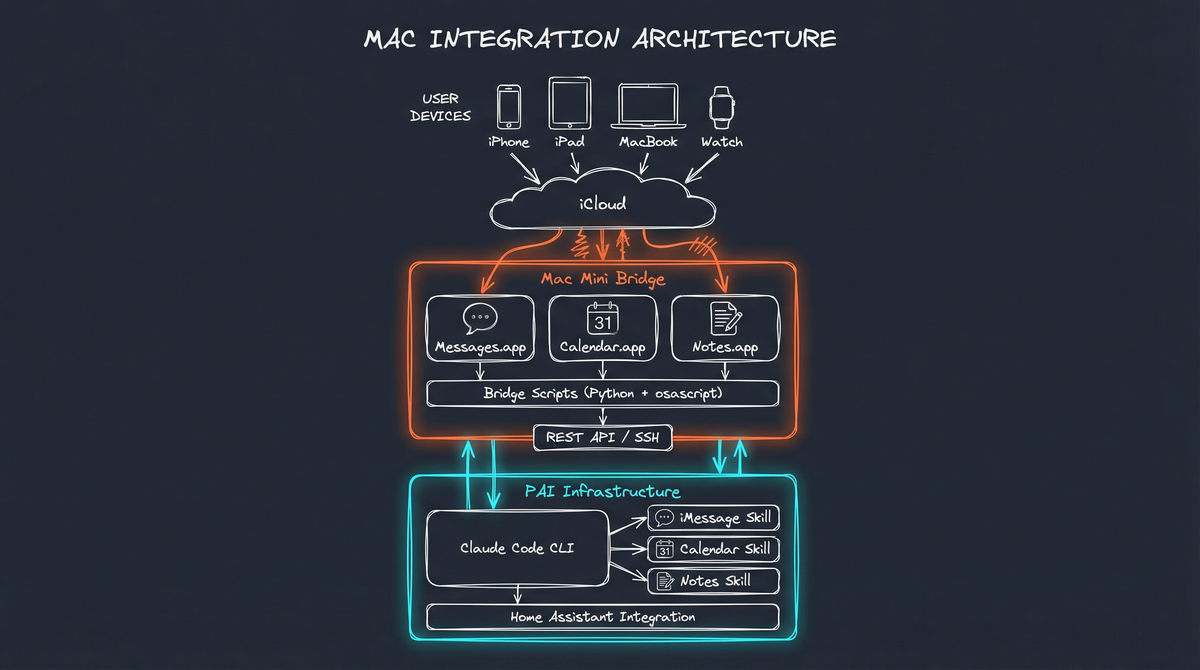
How Each Integration Works
iMessage: Read and Write
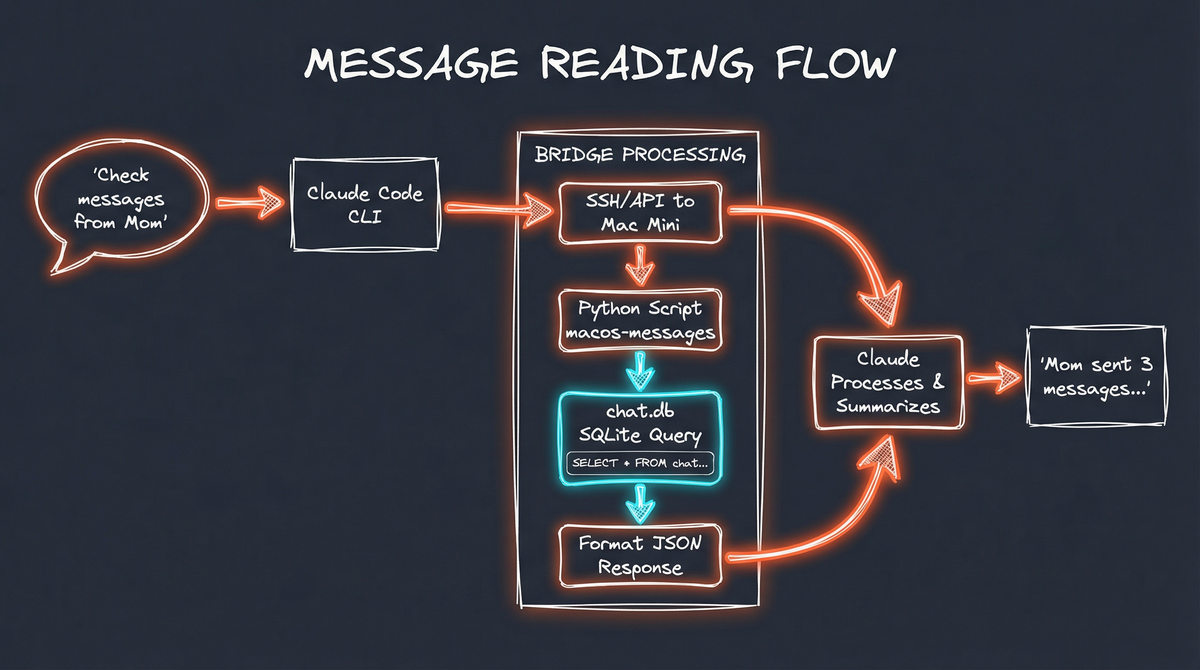
Reading Messages involves querying the SQLite database that Messages.app maintains locally:
-- Get recent messages from a contact
SELECT
    m.text,
    h.id AS sender,
    datetime(m.date + 978307200, 'unixepoch') AS timestamp
FROM message m
LEFT JOIN handle h ON m.handle_id = h.ROWID
WHERE h.id LIKE '%+1555123%'
ORDER BY m.date DESC
LIMIT 20;
The database (~/Library/Messages/chat.db) contains your entire message history—every conversation, attachment reference, and read receipt.
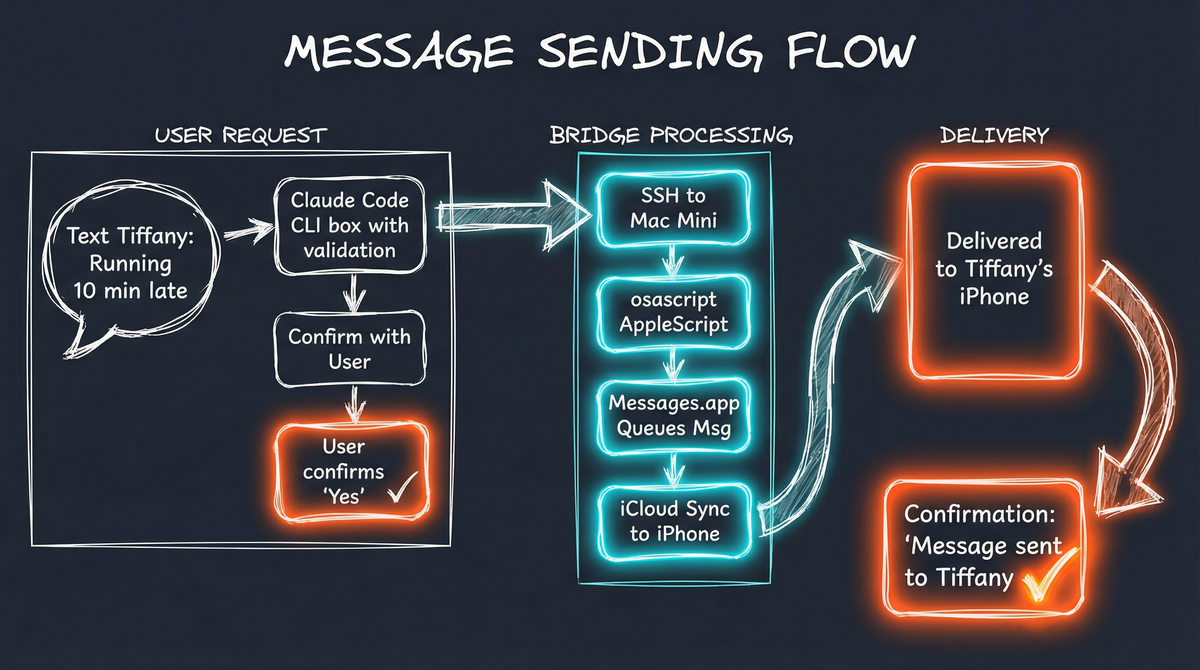
Sending Messages uses AppleScript through the osascript command:
tell application "Messages"
    send "Your message here" to buddy "+15551234567" of (service 1 whose service type is iMessage)
end tell
The key requirements:
- Full Disk Access permission for the process reading chat.db
- Pre-existing conversation with the recipient (AppleScript can’t initiate new contacts)
- User approval for automation (one-time prompt on first use)
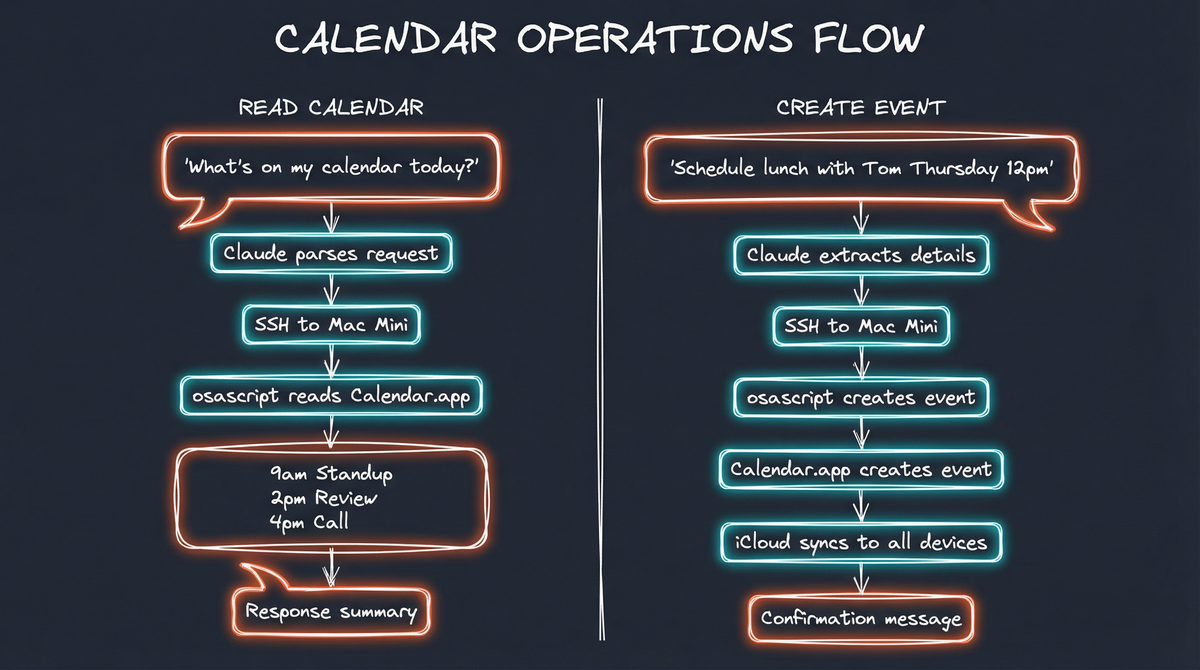
Calendar: Read and Create Events
Calendar data syncs to ~/Library/Calendars/ and can be queried via CalDAV or directly through AppleScript:
tell application "Calendar"
    set todayEvents to (every event of calendar "Personal" whose start date is greater than or equal to (current date))
    repeat with anEvent in todayEvents
        get summary of anEvent
        get start date of anEvent
        get end date of anEvent
    end repeat
end tell
Creating events works similarly:
tell application "Calendar"
    tell calendar "Personal"
        make new event with properties {summary:"Meeting with PAI", start date:date "January 15, 2026 2:00 PM", end date:date "January 15, 2026 3:00 PM"}
    end tell
end tell
Notes: Search and Create
Apple Notes uses a more complex storage format, but can be accessed through AppleScript:
tell application "Notes"
    set noteList to every note
    repeat with aNote in noteList
        get name of aNote
        get body of aNote
    end repeat
end tell
Creating notes:
tell application "Notes"
    make new note at folder "Notes" with properties {name:"Meeting Summary", body:"Key decisions: ..."}
end tell
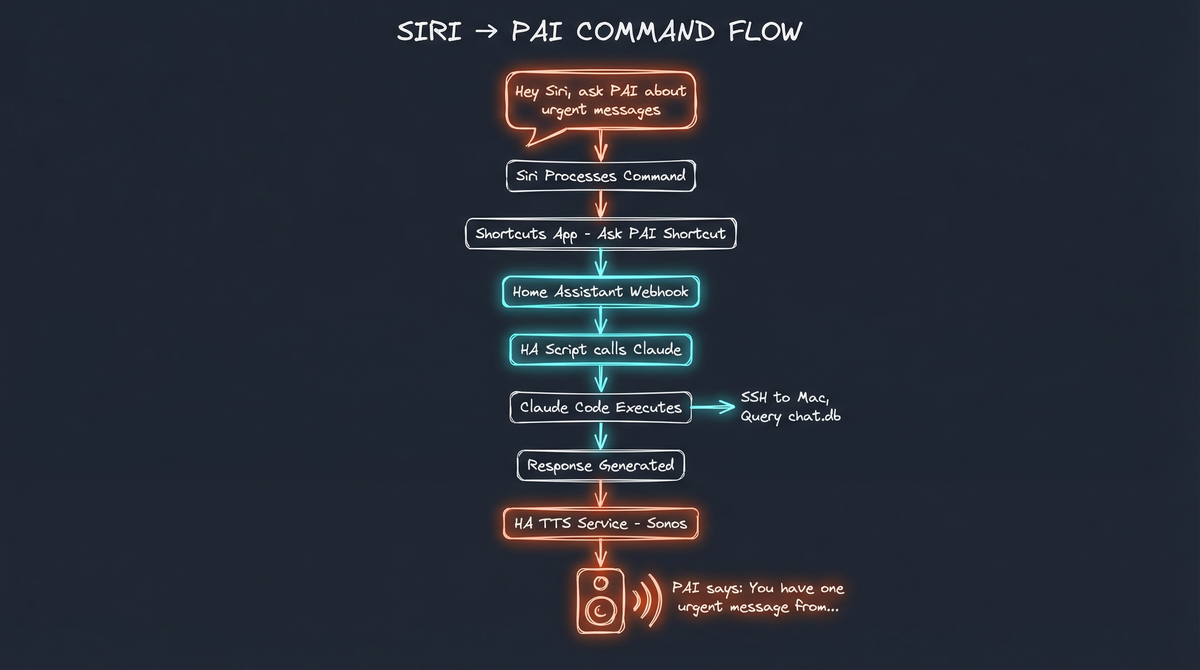
Siri: Voice Command Routing
This is where it gets interesting. Siri can’t directly call external systems, but with Home Assistant as an intermediary, voice commands can trigger PAI actions.
The flow:
- Siri activates a Shortcut or Home scene
- Home Assistant receives the trigger
- HA runs a script that invokes Claude Code
- Claude Code executes the request
- Response is sent to Sonos speakers via TTS
Detailed Data Flow Diagrams
Reading Messages Flow
Sending Messages Flow
Calendar Integration Flow
Siri Voice Command Flow
What This Unlocks
Use Case 1: Smart Message Triage
Instead of manually checking Messages throughout the day:
"PAI, summarize any messages I should respond to"

→ Queries chat.db for unread messages
→ Filters by priority contacts
→ Identifies questions needing responses
→ Returns: "3 messages need attention:
   - Ashley asked about dinner plans
   - Work: System alert (informational only)
   - Mom asked when you're visiting"
Use Case 2: Context-Aware Scheduling
When scheduling meetings, PAI can check real availability:
"Schedule a call with the client team next week"

→ Reads Calendar for existing commitments
→ Identifies open slots
→ Considers travel time, lunch, focus blocks
→ Proposes: "Tuesday 2-3pm or Thursday 10-11am work best"
Use Case 3: Relationship Memory
By indexing message history, PAI can recall context:
"What restaurant did Tom recommend last month?"

→ Searches chat.db for conversations with Tom
→ Finds messages containing restaurant names
→ Returns: "Tom recommended Pullman Bar & Diner
   on December 12th - said the burger was excellent"
Use Case 4: Hands-Free Operation
Through Siri integration, voice becomes an input method:
[Driving] "Hey Siri, have PAI check if Ashley responded"

→ Siri triggers HA shortcut
→ HA calls Claude Code
→ Queries recent messages from Ashley
→ TTS response through CarPlay: "Ashley says
   she'll pick up the kids at 5"
Use Case 5: Proactive Notifications
Monitoring for important messages:
Monitor running in background:
→ Detects new message from boss
→ Contains keywords: "urgent", "need", "today"
→ Triggers notification to PAI
→ PAI summarizes and alerts user
Security Considerations
This integration requires careful security practices:
Access Control
- Mac Mini should be on isolated network segment
- SSH keys only, no password authentication
- Firewall rules limiting inbound connections
Data Protection
- chat.db contains sensitive data—never copy off-device
- Log access but don’t log message content
- Implement rate limiting on message sending
Permission Scoping
- Full Disk Access only for bridge scripts
- Automation approval scoped to specific apps
- Regular audit of granted permissions
Hardware Requirements
The Mac Mini doesn’t need to be powerful:
| Component | Minimum | Recommended |
|---|---|---|
| Model | 2018 Intel | 2020 M1+ |
| RAM | 8GB | 16GB |
| Storage | 128GB | 256GB |
| Network | WiFi | Ethernet |
| macOS | Monterey | Sonoma |
A used Mac Mini from 2018-2020 works perfectly and can be found for $300-500. It runs headless, consuming minimal power.
Implementation Status
I’ve implemented:
- iMessage reading - Full history searchable through PAI
- Calendar reading - Today’s schedule available on request
- Home Assistant bridge - Basic command routing working
- Sonos TTS responses - Audio output for hands-free use
Still in progress:
- Message sending - Working but needs safety guardrails
- Calendar creation - AppleScript integration needs refinement
- Notes integration - Read access working, write access pending
- CarPlay testing - Siri → PAI flow needs optimization
The Bigger Picture
This integration represents something important: AI that meets you where you are.
Most AI tools ask you to change your workflow. Export your data here. Use this new interface. Learn this new system. The Mac Mini bridge does the opposite—it adapts to how you already work.
Your messages stay in Messages. Your calendar stays in Calendar. Your notes stay in Notes. But now your AI can see them, search them, and act on them.
That’s the vision of Personal AI Infrastructure: not replacing your tools, but connecting them intelligently.
Building a Mac Mini bridge for your own PAI system? I’m happy to share more implementation details. Get in touch if you’re working on similar integrations.